Bitcoin Core is one of the most important wallets in the Bitcoin ecosystem. As an official Bitcoin client, the wallet lets users run nodes, helping maintain the Bitcoin network. And as a crypto wallet, it lets you access and manage your Bitcoin.
Losing your Bitcoin Core wallet would be devastating. Not only does it deny you access to your digital assets, but it also stops you from participating in the network as a node. You lose your funds and can no longer contribute to the blockchain’s security.
Preserving asset custody and helping maintain the network are two important things to Bitcoin enthusiasts, the kind of people who tend to use Bitcoin Core wallets. So, to be on the safe side, always back up your Bitcoin Core wallet.
Why Would You Want to Backup Your Bitcoin Core Wallet?
Things don’t always go according to plan. You might lose or damage the computer running your Bitcoin Core wallet, accidentally delete some crucial files, or suffer a catastrophic malware attack.
The odds of any one of these happening to you may be low. But over the years, enough BTC has been lost that backing up your Bitcoin Core wallet is a necessary precaution.
What Does Backing Up a Wallet Entail?
The way the blockchain works, crypto assets are essentially data on a software ledger. They live on the blockchain as bits of data. So, a crypto wallet is a software tool that lets you access, manage, and use the data.
Think of it as a key. In fact, crypto wallets use a pair of cryptographic keys. So, backing up a wallet essentially involves creating and storing a copy of its keys.
Bitcoin Core Backup vs Other Crypto Wallets
Bitcoin Core is a core wallet. The official software application developed by the Bitcoin project lets users manage and interact with the blockchain. When you use a Bitcoin Core wallet, you’re not just handling your crypto, you’re running a full node on the Bitcoin blockchain. So in some key ways, Bitcoin Core is unlike any other Bitcoin wallet.
For instance, it does not generate a seed phrase, a combination of 12-24 words that contains its wallet’s public and private keys. A seed phrase can be used to restore the wallet. That’s why it’s sometimes called the backup phrase.
Unfortunately, Core wallets don’t generate a seed phrase upon creation. They don’t give the user the private keys to back up. Well, technically they do, albeit in a unique manner.
Core wallets employ a different mechanism for storing and managing private keys. During setup, they create a file called ‘wallet.dat’ to store their private keys and other essential data.
The good news is that users can access this file. While backing up your Bitcoin Core wallet may not be as straightforward as with other wallets, it is still possible. You just have to back up the wallet.dat file.
How to Backup Wallet.dat
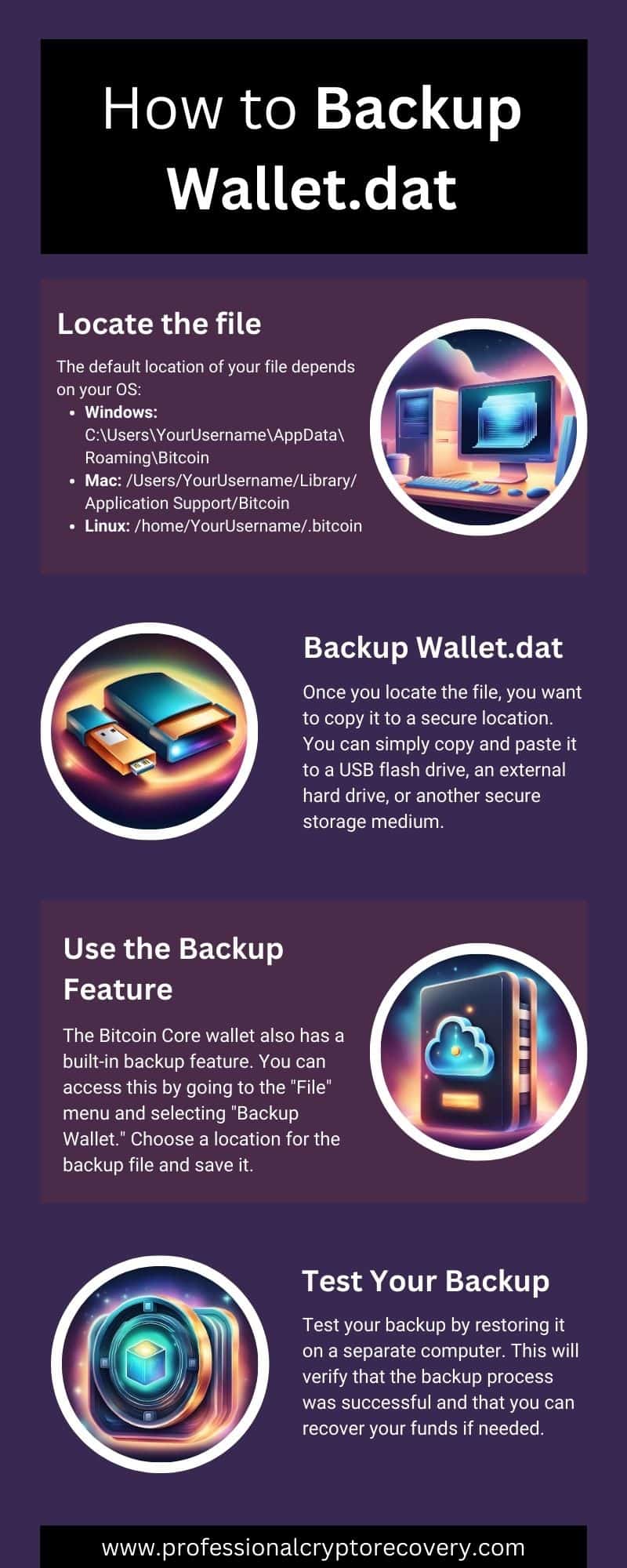
You want to create a copy of your wallet.dat file and secure it. Here’s a general guide on how to do that:
1. Locate the File
The default location for the wallet.dat file depends on your operating system:
- Windows: C:\Users\YourUsername\AppData\Roaming\Bitcoin
- Mac: /Users/YourUsername/Library/Application Support/Bitcoin
- Linux: /home/YourUsername/.bitcoin
2. Backup Wallet.dat
Once you locate the file, you want to copy it to a secure location. You can simply copy and paste it to a USB flash drive, an external hard drive, or another secure storage medium. Make sure that your Bitcoin Core application is closed when doing this.
3. Use the Backup Feature
The Bitcoin Core wallet also has a built-in backup feature. You can access this by going to the “File” menu and selecting “Backup Wallet.” Choose a location for the backup file and save it.
4. Test Your Backup
If possible, test your backup by restoring it on a separate computer. This will verify that the backup process was successful and that you can recover your funds if needed.
Best Practices to Keep Your Bitcoin Secure
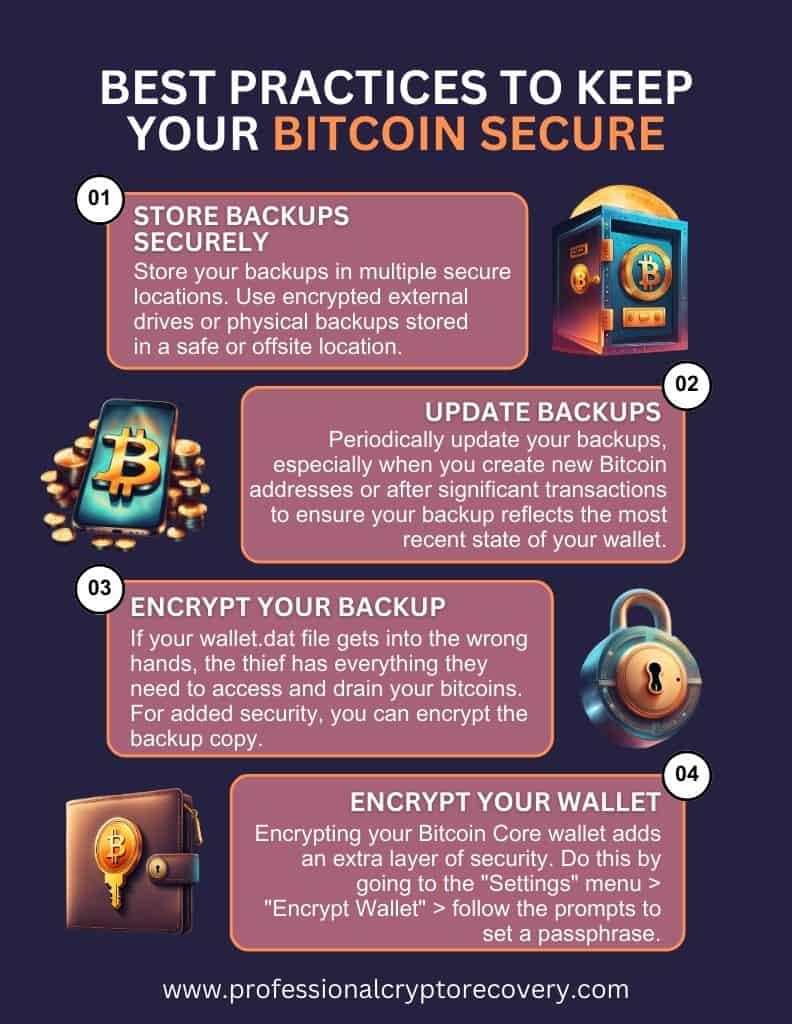
It’s good to exercise due diligence when backing up your Bitcoin Core Wallet. So, you might want to:
- Store Backups Securely – Store backups in multiple secure locations. Consider using encrypted external drives, USB sticks, or SD cards stored in a safe or off-site location.
- Regularly Update Backups – Create new backups periodically, especially when you create new Bitcoin addresses or after significant transactions. This ensures that your backup reflects your wallet’s most recent state.
- Encrypt Your Backup – There is a small risk that your wallet.dat file backup could end up in the wrong hands. If that happens, the thief has everything they need to access and drain your Bitcoin. As an extra layer of security, you should encrypt the backup copy.
- Encrypt Your Wallet With a Passphrase – Encrypting your Bitcoin Core wallet adds an extra layer of security. You can do this by going to the “Settings” menu, selecting “Encrypt Wallet,” and following the prompts to set a passphrase.
How to Restore Your Core Wallet
Once you back up your Bitcoin Core wallet, you can restore it whenever needed. To do this, you will need to do a fresh install of the wallet. If you had previously encrypted your wallet with a passphrase, you will need to provide it to access your funds. If you have forgotten your passphrase, you’ll have to recover it. In situations where a Bitcoin Core wallet cannot be accessed due to a lost passphrase, corrupted wallet.dat file, or other wallet issues, professional Bitcoin recovery may help determine whether the wallet can be recovered.
To restore your wallet:
- Locate the Bitcoin Core Data Directory – The default Bitcoin Core data directory varies by operating system. Locations for Windows, Mac, and Linux are:
- Windows: C:\Users\YourUsername\AppData\Roaming\Bitcoin
- macOS: ~/Library/Application Support/Bitcoin
- Linux: ~/.bitcoin
- Replace wallet.dat with Backup – Copy your backup wallet.dat file into the Bitcoin Core data directory. Make sure it overrides the existing file.
- Launch Bitcoin Core – Open the Bitcoin Core application. It will detect the presence of the new wallet.dat file.
- Rescan the Blockchain – In some cases, your transactions are not immediately visible. You may need to manually initiate a blockchain rescan. You can do this from the console or command line by entering the command ‘rescan’ after unlocking the wallet.
- Verify Balance and Transactions – Once the synchronization is complete, verify that your balance and transactions are accurate.
Secure Your Bitcoin Core Wallet
Being a core wallet, Bitcoin Core allows users to manage their crypto assets and run a full node for the Bitcoin blockchain, making it popular among Bitcoin enthusiasts. But, as with any other wallet, Bitcoin Core users can experience issues that render the application unusable. This makes having a backup a really good idea.
Fortunately, creating one isn’t complicated. You can make it directly in the application or manually create a copy from the wallet’s data directory. That way you’re safe in case anything happens to/with your current installation.